
Download simplewall — Windows Firewall Tool
A lightweight, open-source tool that controls which apps access your network using Windows Filtering Platform. Under 2 MB, blocks telemetry by default, and gives you full control.
What Is simplewall?
A powerful yet tiny open-source firewall that gives you full control over your Windows network traffic.
simplewall is a free, open-source network filtering tool for Windows that uses the Windows Filtering Platform (WFP) to give you total control over which applications and services can access the internet. Developed by Henry++, the program has earned a strong following among privacy-conscious users who want a straightforward way to manage outbound and inbound connections without dealing with the complexity of the built-in Windows Firewall interface.
Unlike traditional firewalls that wrap around the built-in Windows Firewall, simplewall operates independently by configuring WFP directly. This means it works at a deeper level within the operating system, providing more reliable filtering without relying on Windows Firewall being enabled. Both can run side by side without conflicts.
Who Is It For?
simplewall is built for users who want granular network control without the bloat. Whether you are a privacy-focused individual looking to block Windows telemetry, a system administrator managing outbound connections, or a power user who wants to know exactly what each application is doing on your network, simplewall provides that visibility. It supports Windows 7 through Windows 11 on both 64-bit and ARM64 architectures.
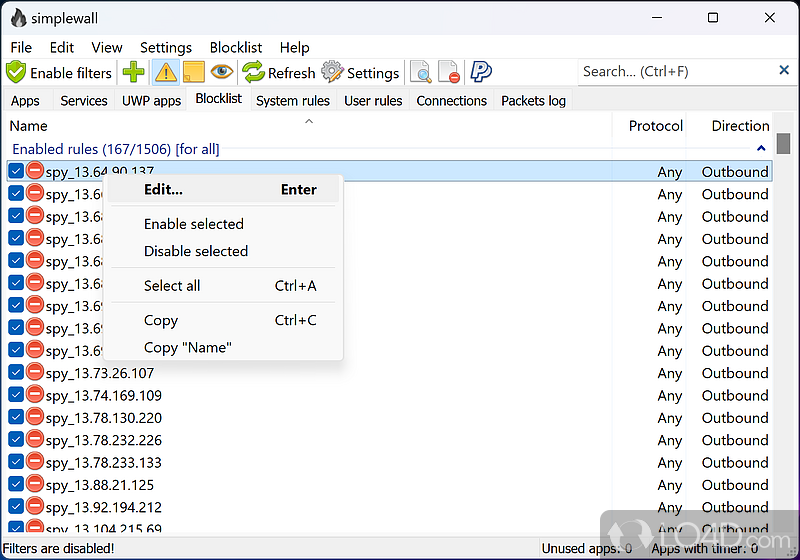
simplewall comes with a built-in blocklist of over 540 Microsoft telemetry IP addresses (expandable to 1,496), blocking Windows data collection out of the box with no extra configuration needed.
Why Choose simplewall?
The program follows a default-deny approach: every application is blocked from accessing the network until you explicitly allow it. This gives you full awareness of what runs on your system and what it communicates with. At under 2 MB installed size and minimal memory usage, it adds virtually no overhead to your system. The entire codebase is open-source (written in C), regularly audited by the community, and has been maintained actively since its initial release.
Ready to take control of your network? Download simplewall
Key Features
Everything you need to monitor and control your Windows network traffic, in a package under 2 MB.
Clean, Non-Intrusive UI
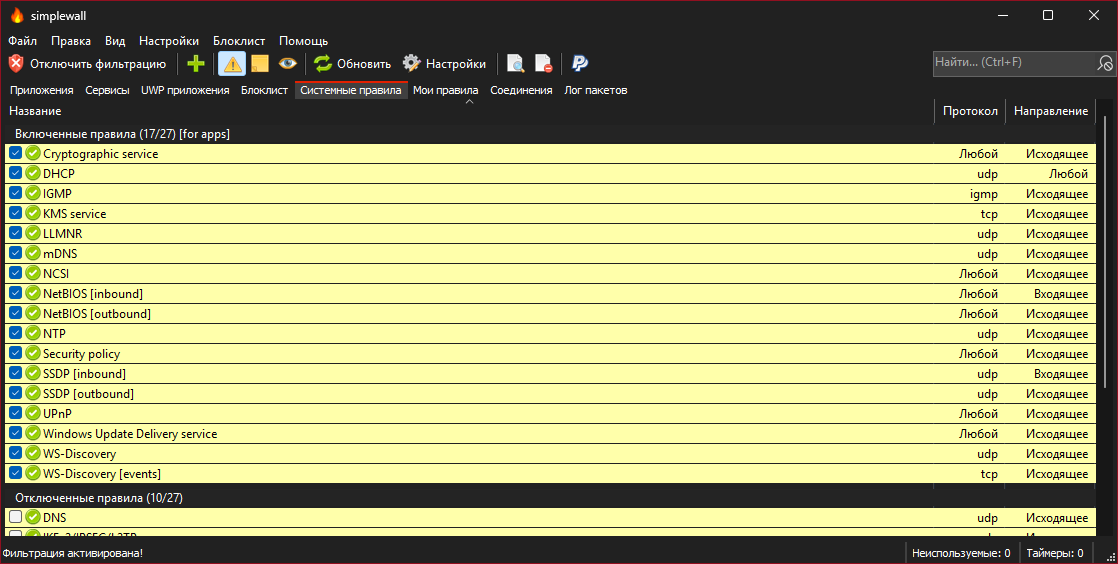
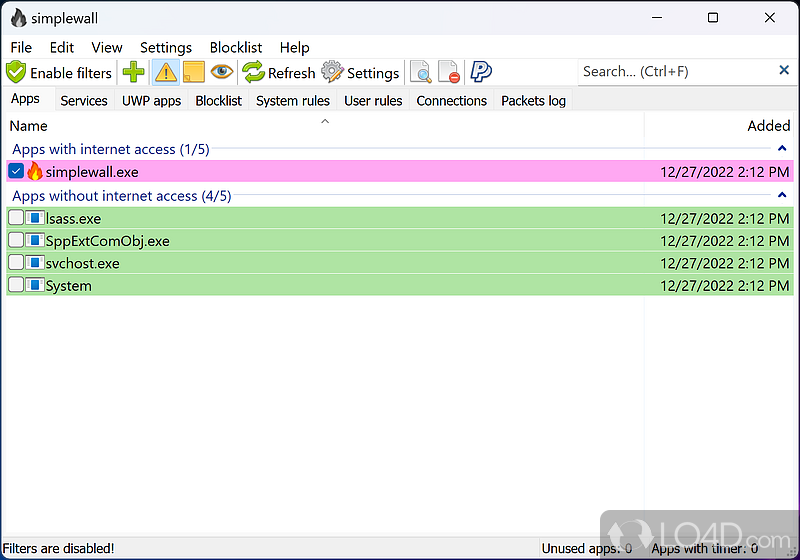
A straightforward list view that shows all applications and their network status. No annoying pop-ups, no dashboard clutter – just the information you need.
Custom Rules Editor
Create personalized filtering rules with support for IP addresses, IP ranges, CIDR notation, ports, port ranges, and TCP/UDP protocol filtering. Both global and app-specific rules.
Built-in Telemetry Blocklist
Ships with 540+ Microsoft telemetry IP addresses pre-blocked (expandable to 1,496). Stops Windows data collection without any manual configuration.
Packet Logging
Logs dropped packets on Windows 7+ and allowed packets on Windows 8+. Provides real-time notifications for blocked and allowed connections.
WSL Support
Filter and manage network activity from Windows Subsystem for Linux processes. Full visibility into WSL network connections alongside native apps.
UWP & Store App Filtering
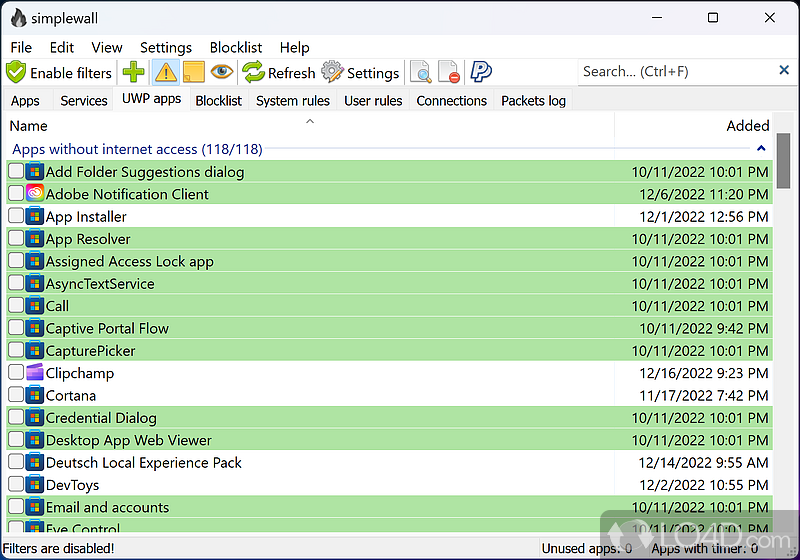
Controls network access for modern Windows Store and UWP applications, giving you the same granular control over Store apps as traditional desktop software.
Service-Level Filtering
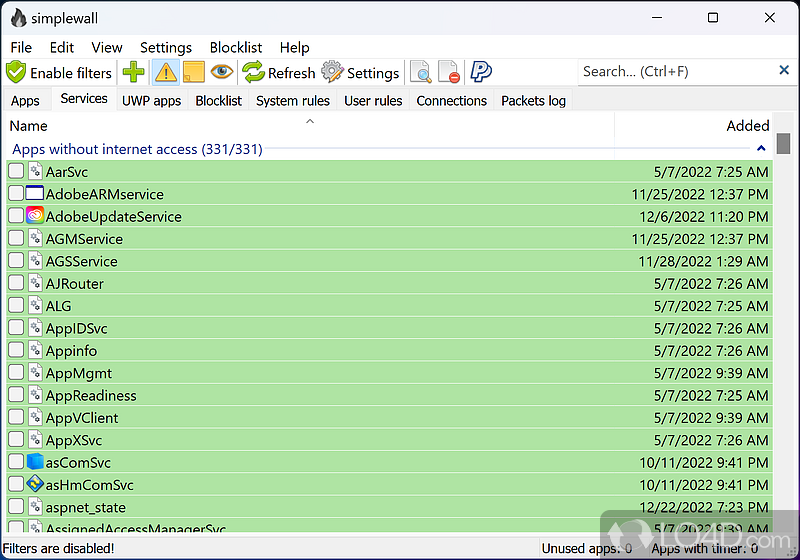
Goes beyond application-level filtering to control individual Windows services running under svchost.exe. Block specific services while keeping others connected.
Default-Deny Architecture
Blocks ALL applications by default. You explicitly allow only the programs you trust, giving you total awareness and control over every network connection.
Portable Mode
Run without installation by placing a simplewall.ini file in the app folder. Carry your configured firewall on a USB drive and use it on any Windows PC.
Explore the full feature set. Get simplewall now
System Requirements
simplewall is designed to be extremely lightweight. If your PC runs Windows, it can run simplewall.
| Component | Minimum | Recommended |
|---|---|---|
| Operating System | Windows 7 SP1 (64-bit) | Windows 10/11 (64-bit) |
| Processor | Any SSE2-capable CPU | Any modern processor |
| RAM | Minimal (under 20 MB usage) | 512 MB+ system RAM |
| Disk Space | Under 2 MB | 10 MB (with logs) |
| Display | 800 x 600 | 1280 x 720 or higher |
| Privileges | Administrator required | Administrator required |
| Dependencies | None (standalone) | KB3063858 for Win 7 |
Download simplewall v3.8.7
Get the latest version of simplewall for free. Available as an installer or portable 7z archive.
Prefer a portable version? Download Portable 7z (922 KB)
What's new in simplewall v3.8.7
This is a maintenance release.
upd: fix crash #2020 (9/8/25)
- fixed not logical crash (issue #2012)
- fixed context menu performance
- updated locale (issue #1984)
- updated project sdk
- cosmetic fixes
Release notes from the GitHub release page, published August 8, 2025.
Screenshots
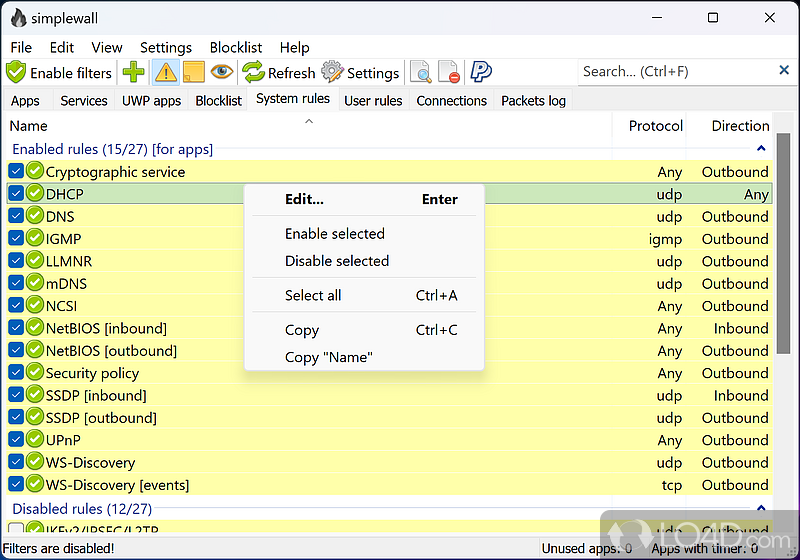
See how simplewall looks and works on your Windows PC.
How to Install simplewall
Follow this step-by-step guide to download, install, configure, and start using simplewall on your Windows PC.
Download simplewall
Head to our download section on this page and click the download button. You can choose between two versions:
- Installer (simplewall-3.8.7-setup.exe, 1.1 MB) – Standard Windows installer with automatic setup. Best for most users.
- Portable 7z (simplewall-3.8.7-bin.7z, 922 KB) – No installation needed. Extract and run. Great for USB drives or restricted environments.
Install or Extract
Using the Installer:
- Right-click
simplewall-3.8.7-setup.exeand select “Run as Administrator.” - Accept the GPL-3.0 license agreement when prompted.
- Choose your installation directory (the default location works fine for most users).
- Click “Install” and wait for the process to complete. simplewall may launch automatically afterward.
Using the Portable Version:
- Extract
simplewall-3.8.7-bin.7zto any folder on your computer. - Create an empty file named
simplewall.iniin the same folder to enable portable mode. - Right-click
simplewall.exeand select “Run as Administrator.”
Initial Configuration
On first launch, simplewall scans your system and displays a list of all detected applications and services:
- Review the list of applications. Each one shows its name, path, and signing status.
- Click “Enable Filtering” in the toolbar to activate the firewall. All unlisted applications are blocked by default.
- When a blocked application attempts to connect, simplewall shows a prompt. Choose “Allow” or “Block” and select whether the rule should be permanent or temporary (reset after reboot).
- Check the Blocklist tab to review built-in telemetry blocking settings. The default blocklist blocks 540+ Microsoft telemetry addresses.
- Optionally, you can disable Windows Defender Firewall. Both firewalls can coexist, but disabling the built-in one avoids duplicate rule management.
Getting Started
Once filtering is active, here are some tips to get the most out of simplewall:
- Allow essential system services first. Let svchost.exe (DNS Client, DHCP Client) and your browser through to maintain basic connectivity.
- Use permanent rules for trusted apps. Set rules to “permanent” for programs you always want connected (browsers, email clients, game launchers).
- Use temporary rules for one-off needs. If an updater or installer needs network access briefly, allow it with a temporary rule that resets on reboot.
- Review the Blocklist regularly. After Windows updates, new telemetry addresses may appear. Check the Blocklist tab to catch them.
- Export your rules. Once your setup is stable, export your rules from the File menu. This lets you restore your configuration quickly after a reinstall.
Need the installer? Download simplewall v3.8.7
Frequently Asked Questions
Common questions about simplewall answered clearly.
Is simplewall free to download?
Yes, simplewall is completely free. It is released under the GPL-3.0 open-source license, which means you can download, use, and even modify the source code at no cost. There are no premium tiers, no trial limits, and no hidden fees. The project is maintained by Henry++ and funded by community contributions.
Is simplewall safe to use?
Yes, simplewall is safe. The entire source code is publicly available on GitHub with over 9,000 stars and active community review. It does not inject drivers or modify system files – it uses the official Windows Filtering Platform API, the same interface Microsoft provides for third-party network filtering. Builds are GPG-signed for verification.
Does simplewall work on Windows 11?
Yes, simplewall fully supports Windows 11 on both x64 and ARM64 processors. It is tested and compatible with all current Windows 11 releases. The program also supports Windows 10, 8.1, 8, and 7 SP1 (with KB3063858 installed on Windows 7).
Can I use simplewall alongside Windows Firewall?
Yes, simplewall and Windows Firewall can run simultaneously without conflicts. simplewall operates through the Windows Filtering Platform independently from Windows Firewall, so both can be active at the same time. Some users prefer to disable Windows Firewall to avoid managing rules in two places, but it is not required.
How do I block Windows telemetry with simplewall?
simplewall blocks Windows telemetry automatically. It ships with a built-in blocklist containing 540+ Microsoft telemetry IP addresses (expandable to 1,496). Just enable filtering and the blocklist will be active by default. You can review and customize blocked addresses in the Blocklist tab. No manual configuration is needed to start blocking telemetry.
How do I allow Windows Update to work with simplewall?
To allow Windows Update, you need to permit the svchost.exe service for Windows Update (wuauserv) and Background Intelligent Transfer Service (BITS). When simplewall shows a connection prompt for these services, click “Allow” and set the rule to permanent. You can also pre-allow them from the main application list by checking the box next to each service.
How do I uninstall simplewall without losing internet?
Before uninstalling, always click “Disable Filters” within simplewall first. This removes all WFP rules from the system. If you uninstall without disabling filters, the WFP rules persist and can block all network access. If you accidentally uninstall without disabling, reinstall simplewall, disable filters, and then uninstall again.
simplewall vs TinyWall – which is better?
Both are solid lightweight firewalls, but they take different approaches. simplewall uses WFP directly and operates independently from Windows Firewall, while TinyWall is a wrapper around the built-in Windows Firewall. simplewall is open-source with a built-in telemetry blocklist; TinyWall is closed-source but offers a “learning mode” for automatic rule creation. Choose simplewall for more transparency and telemetry blocking; choose TinyWall if you prefer automated rule management.
simplewall vs Windows Firewall Control – which should I use?
Windows Firewall Control (by Malwarebytes) is a UI wrapper around the built-in Windows Firewall, offering a friendlier interface for managing its rules. simplewall bypasses Windows Firewall entirely and uses WFP directly, providing deeper system-level filtering. simplewall is free and open-source; Windows Firewall Control has a freemium model. For maximum control and telemetry blocking, simplewall is the stronger choice.
What is svchost.exe and should I allow it?
svchost.exe is a Windows system process that hosts multiple services (DNS, DHCP, Windows Update, etc.). simplewall can filter at the individual service level, so you do not have to allow all svchost traffic. Allow specific services you need (like DNS Client for name resolution and DHCP Client for IP addressing) and block the rest. This gives you fine-grained control over which Windows services can connect.
How do I configure simplewall for gaming?
For gaming, allow your game launcher (Steam, Epic, Battle.net) and the game executables themselves with permanent rules. Also allow the relevant anti-cheat services if present (like EasyAntiCheat or BattlEye). If you experience lag, check whether simplewall is blocking any game-related connections in the log. Most games only need outbound TCP/UDP access on ports 443, 80, and their specific game server ports.
Is simplewall still being maintained?
Yes, simplewall is actively maintained. The latest release (v3.8.7) was published on August 8, 2025. The GitHub repository shows over 3,740 commits across 38 contributors, with regular updates and bug fixes. The project has been in continuous development for years and shows no signs of slowing down.
How do I export and import simplewall rules?
To export rules, go to File > Export in the simplewall menu. This saves your current configuration to an XML file. To import, use File > Import and select your saved configuration. This is useful for backing up your setup before a reinstall or sharing rules across multiple machines. The portable version stores rules in simplewall.xml in the application folder.
Why does simplewall keep showing connection prompts after Windows updates?
Windows updates often change or add system executables, which simplewall treats as new applications. When a file changes, its hash no longer matches the original rule, triggering a new prompt. This is actually a security feature – it ensures you review any changes to executables. After a major update, expect a few new prompts as you re-allow updated system components.
Have more questions? Visit the GitHub repository